Your Wireless Adapter Is Lying to You: The Real Hardware Reasons It Keeps Dropping Out
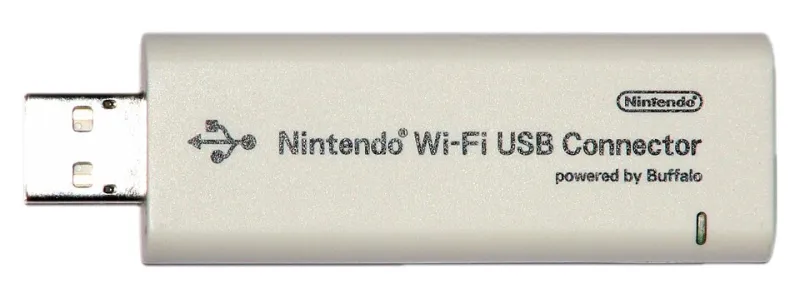
Photo: Unknown, CC BY-SA 3.0, via Wikimedia Commons
You've done the reinstall. You've updated the drivers. You've moved the adapter to a different USB port, changed the Wi-Fi channel, rebooted the router, and Googled every variation of "wireless adapter keeps disconnecting" imaginable. And it still drops out. Every. Single. Time.
Here's something tech support won't tell you — because honestly, most of them don't know either: a lot of wireless adapter failures have nothing to do with software. The problem is physical. It's in the hardware itself. And until you address it at that level, no amount of driver updates is going to fix it.
Let's get into it.
Heat Is the Silent Killer of USB Wireless Adapters
Most USB wireless adapters — especially the compact nano-style dongles — are essentially chips with antennas crammed into the smallest possible form factor. That's great for portability. It's terrible for thermal management.
When these adapters run hot (and they do, especially during sustained data transfers or in warm environments), the chipset throttles performance to protect itself. In mild cases, you see slower speeds. In worse cases, the adapter disconnects entirely, waits for the chip to cool, then reconnects. If your adapter drops connection every 20-30 minutes like clockwork, heat throttling is a strong suspect.
How to test it: After a dropout, immediately touch the adapter. If it's uncomfortably hot to the touch, you've found your culprit. You can also use a free tool like HWiNFO64 on Windows to monitor USB device behavior and cross-reference disconnects with system temperature logs.
The fix: Move the adapter away from heat sources. Use a short USB extension cable to position it where there's better airflow — away from the back of a desktop tower, away from a laptop's exhaust vent. Some users have had success with tiny heatsinks (yes, they exist for USB dongles) or simply switching to an adapter with a larger chassis that dissipates heat better.
Contact Corrosion: The Problem You Can Actually See
USB connectors corrode. It's slow, it's subtle, and it's almost never mentioned in troubleshooting guides because it requires you to actually look at the hardware instead of clicking through menus.
On USB-A adapters, check the gold contacts inside the connector. If they look dull, greenish, or have visible oxidation, that's corrosion building resistance into your connection. The result is intermittent signal loss that looks exactly like a software or driver problem from the outside.
How to test it: Plug the adapter into several different USB ports on different machines. If the dropout pattern changes significantly between ports or machines, the port itself might be corroded — not the adapter. If the adapter drops consistently across all ports and machines, the adapter's connector is the issue.
The fix: For mild corrosion, a quick clean with a cotton swab and 90%+ isopropyl alcohol can restore conductivity. Let it dry completely before reinserting. If the corrosion is heavy or the contacts are physically damaged, the adapter needs to be replaced — no software fix will compensate for degraded electrical contact.
Electromagnetic Interference: Your USB 3.0 Ports Are Probably the Problem
This one is legitimately surprising to most people. USB 3.0 ports generate electromagnetic interference in the 2.4GHz frequency range — which is exactly the frequency band used by most budget wireless adapters. If your wireless adapter is plugged directly into a USB 3.0 port on a laptop or desktop, it may be drowning in self-generated noise.
Intel has actually published documentation on this issue (it's real, not a forum myth). The interference can cause dropped packets, reduced range, and intermittent disconnections that look completely random.
How to test it: Move your wireless adapter to a USB 2.0 port if one is available. Alternatively, use a USB extension cable to physically distance the adapter from the USB 3.0 controller — even 6 inches of separation can make a meaningful difference. If your issues improve immediately, EMI was your culprit.
The fix: Use an extension cable. Seriously. A $6 USB extension cable is one of the most underrated fixes in wireless troubleshooting. If you're buying a new adapter, look for dual-band (2.4GHz + 5GHz) models — moving to the 5GHz band sidesteps the 2.4GHz interference issue entirely.
Poor RF Shielding in Budget Adapters
Not all wireless adapters are built the same, and the gap between a $9 no-name dongle and a $45 mid-range adapter from a reputable brand often comes down to RF shielding and antenna quality — two things that are nearly impossible to evaluate from an Amazon listing.
Budget adapters frequently use single-layer PCBs with minimal shielding, meaning they're susceptible to interference from nearby devices: microwaves, cordless phones, baby monitors, Bluetooth devices, and neighboring Wi-Fi networks. In a dense apartment building or busy home office, this can make a cheap adapter nearly unusable.
Adapters worth considering for reliability:
- Panda Wireless PAU0B AC600 — Consistently praised for build quality and Linux/Windows driver stability. The external antenna design helps with both range and heat dissipation.
- TP-Link Archer T3U Plus — Dual-band with a high-gain antenna. Noticeably better shielding than most adapters in its price range.
- ASUS USB-AC68 — A premium option with dual external antennas and solid RF shielding. Overkill for casual use, but excellent for dense interference environments.
If you're on a tight budget, the Panda Wireless lineup is the go-to recommendation in the enthusiast community for a reason — they use better chipsets than their price suggests.
The USB-C Adapter-on-an-Adapter Problem
If you're using a USB-A wireless adapter with a USB-C-to-USB-A converter to plug into a modern laptop, you've added another potential failure point. Cheap USB-C adapters introduce additional resistance and can create micro-interruptions in power delivery that cause the wireless adapter to reset. If you're on this setup and experiencing dropouts, the converter itself might be the weak link.
The fix: Switch to a natively USB-C wireless adapter, or invest in a quality USB-C hub that provides stable, dedicated USB-A ports with consistent power delivery.
A Practical Diagnostic Checklist
Before you buy anything new, run through this sequence:
- Touch test after dropout — Is the adapter hot? Heat throttling.
- Inspect the connector — Visible corrosion or dullness? Clean or replace.
- Test across multiple ports and machines — Isolates adapter vs. port issues.
- Move to USB 2.0 or use an extension cable — Rules out USB 3.0 EMI.
- Check adapter-on-adapter setups — Replace cheap converters.
- Test on 5GHz band if possible — Sidesteps 2.4GHz interference.
If you've worked through all of these and the adapter still misbehaves, it's time to replace it. Some hardware just fails, and no amount of troubleshooting changes that.
The Bottom Line
Wireless adapter problems are frustrating precisely because they masquerade as software issues. Dropouts, slow speeds, and random disconnections trigger an instinct to reinstall and reconfigure — when the actual fix might be a $6 extension cable, a 30-second cleaning with isopropyl alcohol, or a $40 adapter that was actually designed to handle real-world RF environments.
Knowing where to look makes all the difference. Now you know where to look.