Docking Station Reality Check: The Bandwidth Math That Marketing Departments Hope You Never Do
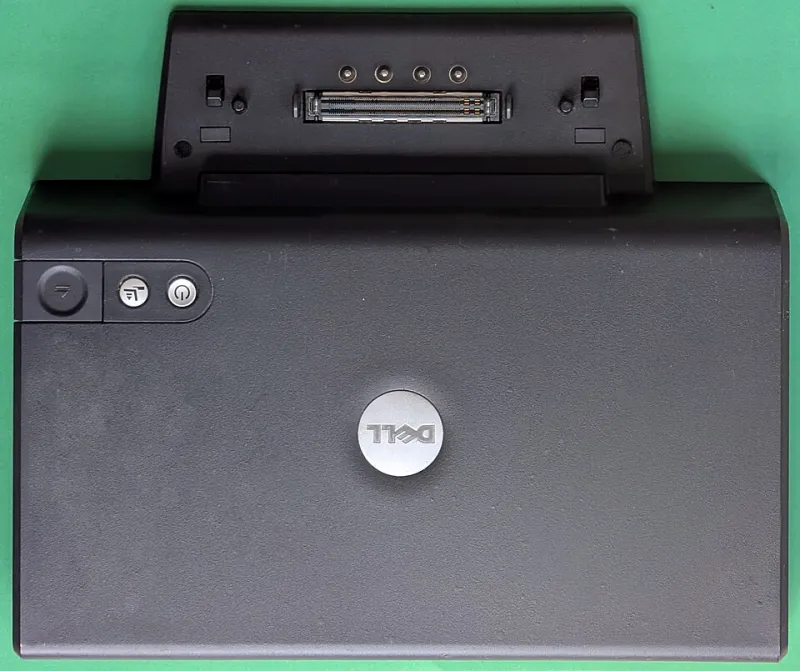
Photo: Siarhei Besarab, CC BY-SA 4.0, via Wikimedia Commons
Somewhere in a product marketing meeting, someone decided it was totally fine to list "4K@60Hz dual display + 100W Power Delivery + 10Gbps USB + 2.5G Ethernet" on a dock's feature list without mentioning that achieving all of those simultaneously is, at best, a fantasy. If you've ever bought a docking station based on the box specs and then wondered why your second monitor looks soft, your file transfers crawl, or your laptop barely charges while docked — welcome to the club. It's a big club.
At AdapterVIP, we've been digging into docking stations for a while now, and the gap between advertised specs and real-world performance is consistently one of the most frustrating things we cover. So let's actually do the math and figure out what's going on.
The Bandwidth Ceiling Nobody Mentions
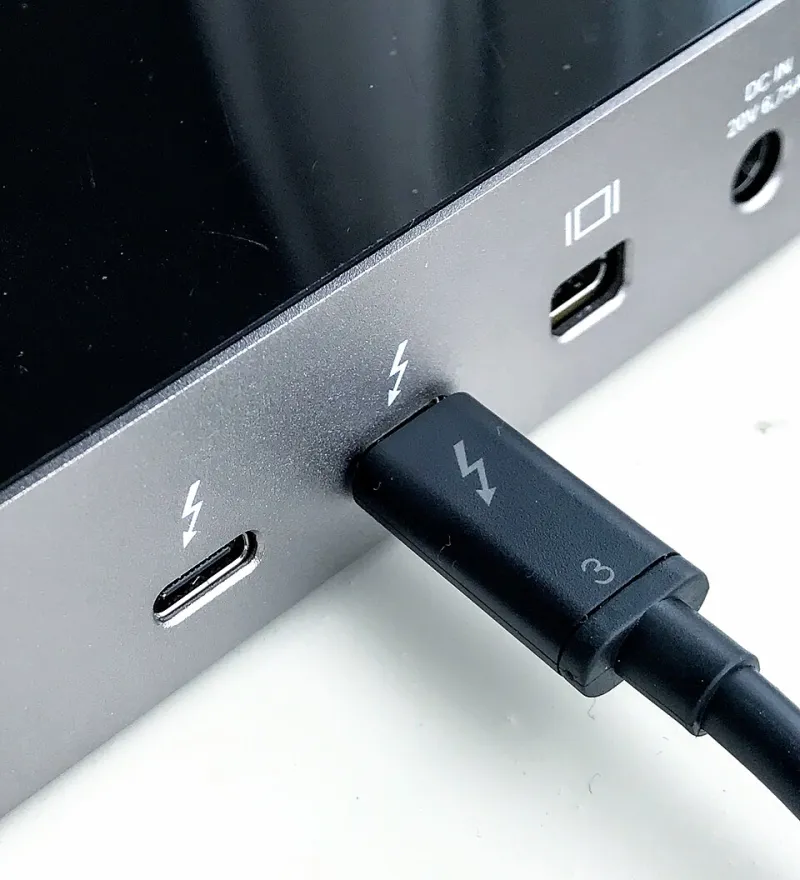
Almost every docking station on the market — whether it's a $60 USB-C hub or a $300 Thunderbolt 4 dock — connects to your laptop through a single port. That port has a fixed bandwidth ceiling, and everything the dock does has to share that pipe.
Here's what that looks like in practice:
- USB 3.2 Gen 1 (5Gbps): The baseline for most budget docks. This is the whole pie.
- USB 3.2 Gen 2 (10Gbps): Mid-range USB-C docks. More pie, but still one pie.
- Thunderbolt 3/4 (40Gbps): The big pie. Still one pie.
Now let's look at what eats that bandwidth:
- A single 4K@60Hz display over DisplayPort 1.4 uses roughly 13–17Gbps
- A second 4K@60Hz display? Another 13–17Gbps
- USB 3.2 Gen 2 data transfer: up to 10Gbps
- 2.5G Ethernet: around 2.5Gbps theoretical
- Power Delivery passthrough: technically doesn't consume data bandwidth, but it does consume the physical connector's electrical capacity
Add those up on a 10Gbps USB dock and you're already several times over budget before you've transferred a single file. Even on a Thunderbolt 4 dock with 40Gbps total bandwidth, running dual 4K displays alone consumes 26–34Gbps, leaving precious little headroom for anything else to operate at full rated speed.
What Actually Degrades First
When you oversubscribe a dock's bandwidth — which happens constantly in real-world use — something has to give. Based on our testing across several popular models, here's the typical degradation hierarchy:
USB data speeds tank first. Your dock might advertise 10Gbps USB ports, but if you're running displays simultaneously, expect real-world transfer speeds that look more like USB 2.0 than USB 3.2. We've measured drops from theoretical 10Gbps to effective speeds under 200MB/s on multiple popular docks during dual-display operation.
Second display quality suffers next. When bandwidth gets tight, docks often silently drop the second display's output to 4K@30Hz or lower color depth to stay within limits. Your screen still shows a picture — it just doesn't look as good as you're expecting, and you might not even notice unless you're looking for it.
Charging wattage gets throttled. Power Delivery doesn't operate in a vacuum. Under heavy load, many docks quietly reduce charging output from the advertised 100W to 60W or even lower. Your laptop battery might actually drain while docked under heavy workloads — which is a uniquely frustrating experience when you paid for a 100W dock.
The Thermal Problem Is Real Too
Bandwidth isn't the only issue. Thermal management in docking stations is genuinely terrible across most of the market, and it gets worse as you pack more features into a compact form factor.
We've used a thermal camera on several popular models during sustained use, and it's not pretty. Compact Thunderbolt docks — the sleek, palm-sized ones that look great on a minimalist desk — regularly hit surface temperatures above 130°F (54°C) during heavy workloads. That's hot enough to be uncomfortable to touch and, more importantly, hot enough to trigger thermal throttling of internal components.
When a dock thermally throttles, USB speeds drop, display output may flicker or reduce quality, and charging efficiency falls. The irony is that the most premium-looking docks (thin, aluminum, no vents) are often the worst thermal performers because aesthetics and airflow are competing priorities.
Docks with active cooling (yes, some have tiny fans) or at least passive vent slots consistently outperform their sleek counterparts under sustained load. If your workday involves continuous file transfers, video calls, and multiple displays — and you're using a compact fanless dock — you're almost certainly experiencing thermal throttling without realizing it.
The Marketing Claims Worth Calling Out
A few specific claims deserve scrutiny:
"Dual 4K@60Hz displays" — Only legitimate on Thunderbolt 4 docks with DSC (Display Stream Compression) support, and even then, your laptop's GPU and the dock's DisplayPort version both have to cooperate. Many USB-C docks claiming dual 4K are actually running one display at 4K and the second at 1080p or using MST (Multi-Stream Transport) in ways that compromise refresh rate.
"100W Power Delivery" — This is the wattage the dock can deliver to your laptop when nothing else is demanding power. Under real load with displays and USB devices active, effective charging wattage frequently drops by 30–50%.
"10Gbps USB ports" — Per-port theoretical maximum, not simultaneous throughput across all ports. If your dock has four 10Gbps ports, they don't each get 10Gbps — they share the available upstream bandwidth.
How to Actually Choose the Right Dock
Here's a simplified decision framework based on real-world use cases:
If you're primarily using one 4K display + charging + occasional USB peripherals: A quality USB-C dock in the $60–$100 range (CalDigit, Anker, or similar) is genuinely sufficient. You won't saturate a 10Gbps connection doing this.
If you need dual displays and regular file transfers: You need Thunderbolt 4. Full stop. Budget at least $150–$200 and prioritize models with active cooling or good passive ventilation. Caldigit's TS4 and OWC's Thunderbolt 4 Hub are consistently strong performers here.
If you need dual 4K + simultaneous fast storage + charging: You're asking for the full 40Gbps Thunderbolt 4 budget. Look for docks that explicitly state DSC support, and manage your expectations about simultaneous peak performance across all ports.
If your laptop only has USB-C (not Thunderbolt): No Thunderbolt dock will give you Thunderbolt speeds — the dock is only as fast as the host connection. A good USB-C dock is the right call, and you should prioritize one with a larger, ventilated chassis over a compact one.
The Bottom Line
Docking stations are genuinely useful tools, and a well-matched dock can transform a laptop into a real desktop replacement. But the marketing on most of these products is optimistic to the point of being misleading. The specs on the box describe best-case-scenario performance on individual features in isolation — not what you'll get running everything at once.
Do the bandwidth math before you buy. Check whether the dock's host connection type actually matches your laptop's port capabilities. And if thermal performance matters to you (it should), prioritize chassis design over aesthetics. Your workflow will thank you more than your desk's Instagram aesthetic ever will.