Your 4K Monitor Is Lying to You: The DisplayPort vs HDMI Truth Nobody Tells You at Checkout
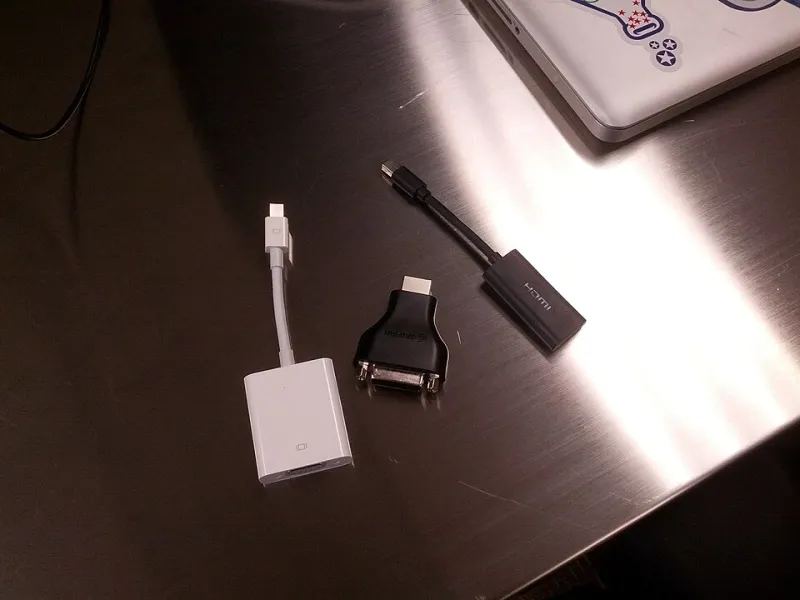
Photo: Antonio Zugaldia from Washington, D.C., United States, CC BY 2.0, via Wikimedia Commons
You did everything right. You researched the monitor, compared the specs, maybe even waited for a sale. And yet, the moment you fired it up, something felt off. Colors looked a little flat, motion felt choppy, or your refresh rate counter was stubbornly sitting at 60Hz when the box clearly said 144Hz. Sound familiar?
Here at AdapterVIP, we hear this story constantly — and nine times out of ten, the issue isn't your monitor or your graphics card. It's the connector you used to hook them together. So let's settle the DisplayPort vs HDMI debate once and for all, because the answer actually matters depending on what you're doing with that screen.
The Bandwidth Problem Nobody Mentions at Best Buy
Both DisplayPort and HDMI have gone through multiple generations, and this is where things get messy fast. Not all cables are created equal, and the version numbers stamped on the box (or more often, not stamped on the box) make an enormous difference.
HDMI 2.0 — still the most common version bundled with monitors and TVs — tops out at 18 Gbps of bandwidth. That sounds like a lot until you realize that driving a 4K display at 144Hz with HDR enabled needs closer to 40–50 Gbps. HDMI 2.1 fixes this with 48 Gbps of throughput, but here's the catch: a huge number of monitors marketed as "4K 144Hz" ship with an HDMI 2.0 port, not 2.1. So even if your GPU supports HDMI 2.1, your monitor might be the bottleneck.
DisplayPort tells a slightly better story. DisplayPort 1.4 — which has been around since 2016 and remains extremely common — delivers 32.4 Gbps of usable bandwidth. That's enough for 4K at 120Hz with HDR using Display Stream Compression (DSC), a lossy compression standard that's mostly invisible but technically not "pure" signal. DisplayPort 2.1, the newer standard, blows the roof off with up to 80 Gbps, though hardware supporting it is still rolling out.
Bottom line: for most gaming and creative setups in 2024, DisplayPort 1.4 is still your safest bet for high refresh rates without the version-number lottery.
Refresh Rates: Where the Real Frustration Lives
If you're a gamer and you bought a 144Hz or 165Hz monitor, you almost certainly need to be running DisplayPort. Here's why: even when a monitor lists HDMI as a connection option, the fine print in the manual often reveals that maximum refresh rate is only achievable over DisplayPort. Manufacturers do this because HDMI licensing costs and port versions vary, and it's cheaper to put a lower-spec HDMI port on a monitor than to spec it up fully.
A quick way to check: pull up your monitor's on-screen display (OSD) and look at what refresh rate is actually active. On Windows, go to Settings > System > Display > Advanced Display Settings. If you're seeing 60Hz on a 144Hz panel, your cable or port version is likely the culprit — not a driver issue.
For content creators doing color-accurate work, the story shifts a bit. HDMI 2.1 actually supports the same color depths and HDR standards as DisplayPort 1.4 in most real-world scenarios. If you're connecting to a high-end TV for reference monitoring or color grading, HDMI is often the more practical choice since professional displays in the TV space lean HDMI-first.
Compatibility Quirks That Will Drive You Absolutely Nuts
A few specific situations trip people up repeatedly:
Daisy-chaining monitors is only natively supported over DisplayPort (using the Multi-Stream Transport, or MST, feature). HDMI has no equivalent. If you're running a dual or triple monitor setup off a single cable run, DisplayPort is your only real option.
Adaptive sync (G-Sync and FreeSync) works over both connections, but G-Sync Compatibility certification on HDMI is far less common than on DisplayPort. If smooth, tear-free gaming is your priority, DisplayPort gives you more reliable access to variable refresh rate tech.
Laptops and USB-C outputs complicate things further. Many modern laptops output DisplayPort signal over USB-C via the DisplayPort Alt Mode standard. If you're using a USB-C to HDMI adapter, you're doing a conversion that can introduce latency or cap your refresh rate depending on the adapter's chipset quality. Always check whether your adapter is rated for the resolution and refresh rate you need — something we cover extensively here on AdapterVIP.
Troubleshooting Your Disappointing 4K Setup
If your monitor isn't performing the way you expected, run through this quick checklist:
-
Verify the cable version. Most cables don't print their version number on the cable itself. Check the packaging, or buy from a brand that explicitly certifies their cables (look for "HDMI 2.1 certified" or "DisplayPort 1.4 certified" labeling).
-
Check your GPU's output ports. A GTX 1060 from 2016 doesn't have HDMI 2.1. Know what your hardware actually supports before blaming the monitor.
-
Set the refresh rate manually. Windows doesn't always default to your monitor's maximum. Go into Display Settings and set it yourself.
-
Try a different port on the monitor. Some monitors have both HDMI 2.0 and HDMI 2.1 ports — they often look identical. Read the manual to identify which is which.
-
Swap to DisplayPort if you're gaming. Seriously, just try it. It eliminates a lot of variables in one move.
So Which One Should You Actually Use?
For gaming: DisplayPort 1.4, full stop. Higher refresh rates, better adaptive sync support, and no version-number guessing games.
For home theater and TV setups: HDMI 2.1, because the TV ecosystem is built around it and ARC/eARC audio return features are exclusive to HDMI.
For content creation and professional work: Either works, but DisplayPort gives you daisy-chain flexibility and slightly more consistent color pipeline behavior on PC monitors.
For everyday office use at 4K/60Hz: Honestly, both HDMI 2.0 and DisplayPort 1.2 handle this fine. Use whatever port is available.
The connector market isn't going to get simpler anytime soon — both HDMI and DisplayPort are pushing new standards while older hardware lingers in the wild. The best thing you can do is know what version of each port lives on your specific devices and buy cables that match. Don't let a $12 cable be the reason your $600 monitor underperforms.