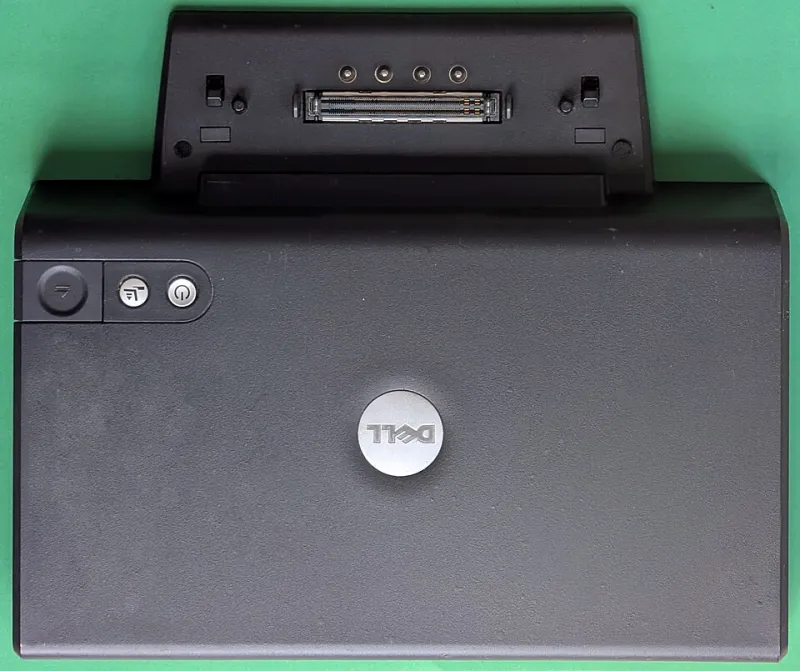
Dock Creep Is Real — Here's the Bandwidth Math That Explains Why Your Setup Keeps Breaking
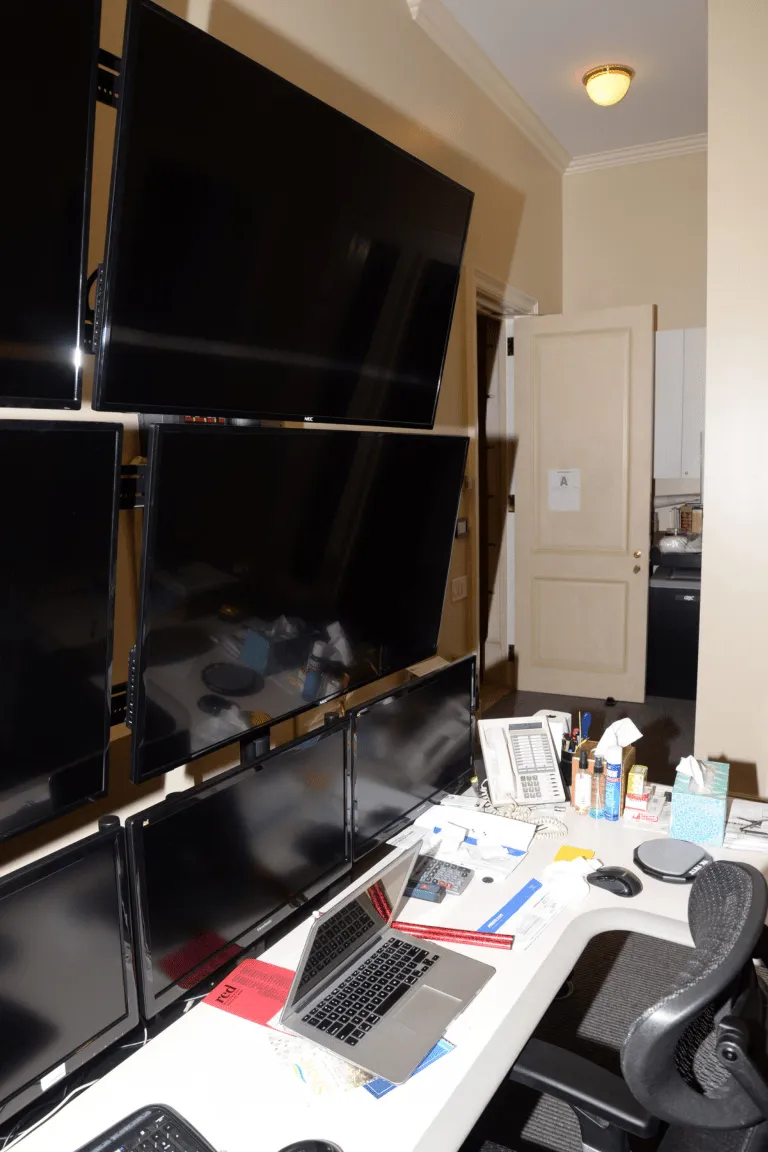
Photo: Federal Bureau of Investigation, Public domain, via Wikimedia Commons
It starts innocently enough. You grab a docking station, plug in your laptop, connect a monitor, and everything works great. Then you add a second monitor. Then a webcam. Then a USB audio interface. Then a second USB hub because you ran out of ports. Then one day your mouse starts stuttering, your second monitor drops to 30Hz, and your video calls look like a slideshow — and you have absolutely no idea why.
Welcome to dock creep. It's one of the most common and least-explained problems in home office and workstation setups, and it's almost never the user's fault. It's a bandwidth problem hiding behind a hardware problem.
Why Your Docking Station Has a Ceiling You Can't See
Here's the thing manufacturers really don't want plastered on the box: every docking station has a total bandwidth budget, and everything you plug into it draws from that same pool.
Most consumer and prosumer docking stations connect to your laptop via a single Thunderbolt 3, Thunderbolt 4, or USB4 cable. Thunderbolt 4 — currently the gold standard — provides 40 gigabits per second of total bandwidth. That sounds enormous until you start doing the math.
A single 4K monitor running at 60Hz over DisplayPort 1.4 consumes roughly 17.28 Gbps of bandwidth. Two of them? You're already at 34.56 Gbps — leaving only about 5.4 Gbps for everything else on the dock: your USB devices, your ethernet connection, your audio interface, your webcam, your storage drives. A USB 3.2 Gen 2 external SSD alone can saturate that remaining headroom during a file transfer.
And that's the best case scenario, with a true Thunderbolt 4 dock. Many docks marketed as "USB-C" or even "USB4" are actually running on USB 3.2 Gen 2, which maxes out at 10 Gbps total. Plug two 4K monitors into one of those and the math doesn't just get tight — it becomes physically impossible. The dock starts compressing, dropping frames, or silently downgrading your display to 1080p or 30Hz to cope.
The Cascading Failure Pattern
What makes dock creep so frustrating is that failures don't announce themselves clearly. They cascade in ways that look random.
Here's a typical progression we've observed in testing:
Stage 1: Everything works. One monitor, a few USB devices, ethernet. Life is good.
Stage 2: Second monitor added. Both displays work, but USB transfer speeds drop noticeably. You blame your flash drive.
Stage 3: USB webcam added. Video call quality degrades. You blame your internet connection.
Stage 4: USB hub added to compensate for port shortage. Mouse and keyboard start intermittently disconnecting. You blame the hub.
Stage 5: Second monitor starts dropping to 30Hz randomly, especially during file transfers. You blame the monitor cable.
None of those diagnoses are correct. Every symptom traces back to the same root cause: the dock's bandwidth budget is oversubscribed, and it's rationing resources dynamically in ways that create unpredictable behavior.
In our own bench testing using a mid-range USB-C dock (10 Gbps connection) with two 1080p monitors, a USB 3.0 SSD, and a USB webcam running simultaneously, we measured USB transfer speeds dropping from a baseline of 380 MB/s to 94 MB/s — a 75% reduction — with no configuration changes other than enabling the second display.
Power Delivery Is a Separate (But Related) Problem
Bandwidth isn't the only resource your dock is rationing. Power delivery is the other invisible ceiling.
Most docking stations advertise a laptop charging wattage — commonly 60W, 85W, or 100W. But that number represents the total power budget, not a dedicated laptop allocation. USB-A ports typically draw 4.5W to 7.5W each under load. USB-C accessories can draw 15W to 45W. A bus-powered external SSD might pull another 4.5W.
On a dock with a 100W power budget, a laptop that needs 65W to charge at full speed might only receive 45W once you account for everything else connected — causing it to charge slowly, or in some cases, actually lose battery charge while plugged in under heavy load. This is why your laptop sometimes says "plugged in, not charging" even when the dock is connected.
Building a Setup That Doesn't Hit These Walls
The good news: dock creep is entirely preventable if you plan for it upfront. Here's the framework we recommend.
Start with your display math. Before buying anything, calculate your display bandwidth requirements. Two 4K@60Hz monitors need at least 35 Gbps for displays alone. That means you need a Thunderbolt 3/4 or USB4 40 Gbps dock — full stop. There's no workaround.
Offload displays from the dock when possible. If your laptop has a dedicated HDMI or DisplayPort output separate from the USB-C port, use it for one of your monitors. This keeps display bandwidth off the dock entirely and frees up its full pipe for USB devices and data.
Use self-powered USB hubs downstream. If you need more USB ports, add a self-powered hub (one with its own AC adapter) rather than a bus-powered one. This keeps USB device power draw off the dock's power budget.
Treat dock bandwidth like a budget, not a limit. Add up your expected bandwidth draws — displays, USB storage, ethernet (1 Gbps = 1 Gbps off your pool), audio — and leave 20-30% headroom. If you're already near the ceiling, the next device you add will cause problems.
Check real-world reviews, not spec sheets. Manufacturers routinely list maximum specs that require perfect conditions. Look for reviews that test multiple simultaneous use cases. Our reviews here at AdapterVIP always run multi-device load tests for exactly this reason.
The Docks Worth Buying for Multi-Monitor Setups
If you're running two 4K monitors plus active USB devices, you need to be shopping in the Thunderbolt 4 certified dock category. The CalDigit TS4, OWC Thunderbolt 4 Hub, and Plugable TBT4-UDZ consistently perform well in real-world multi-device scenarios. They're not cheap — expect to spend $200-$350 — but they're the only category of dock where the bandwidth math actually works for demanding setups.
For single 4K monitor setups with moderate USB needs, a quality USB4 dock in the $80-$150 range (Anker 777, Plugable UD-6950PDZ) will handle the load without drama.
Dock creep is a solvable problem. You just need the right numbers before you buy.